How to Plan and Compare Panel Cutting Layouts
This guide walks through Panel Cut Optimizer (板材开料优化), a Windows desktop app for rectangular panel layouts. It is not a guide for CutOptimizer (Store ID 9NHN5Q6C0S8Q), which is a different one-dimensional cutting app.
The part list, sheet size, and yield figures below come from the app’s official Dense pack sample, as shown in the official preview images. They are a worked example you can add up, not a promise of a particular yield on your own jobs.
1. Open a job and enter sizes
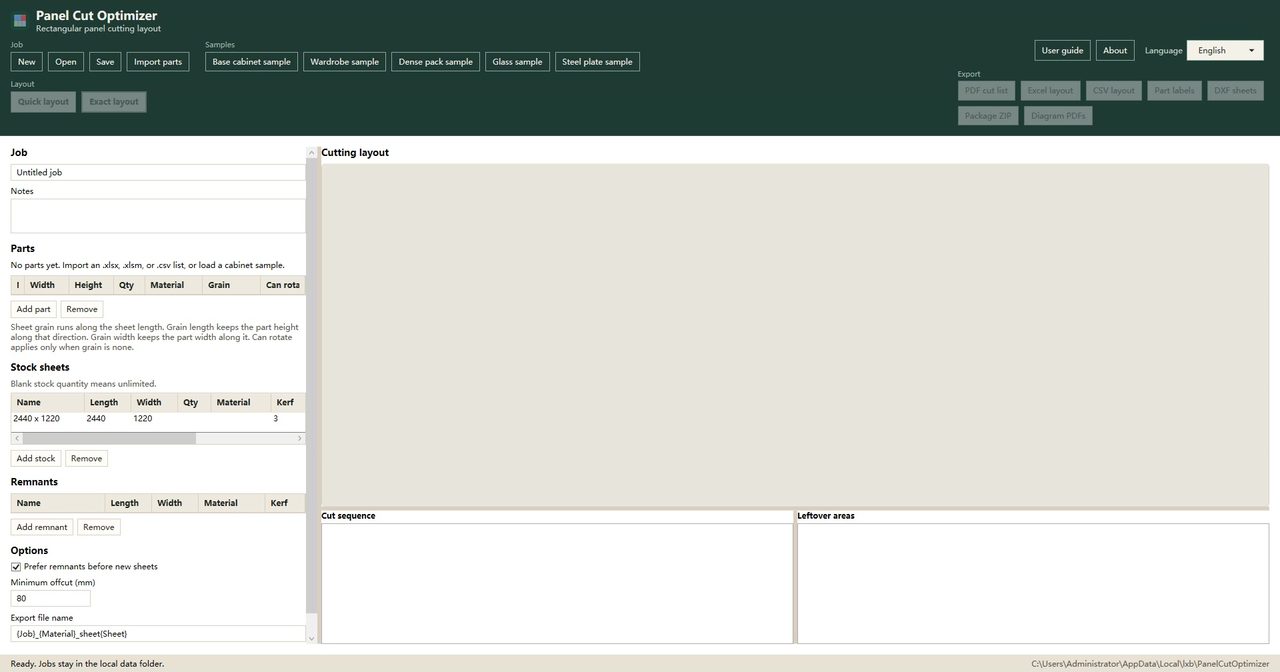
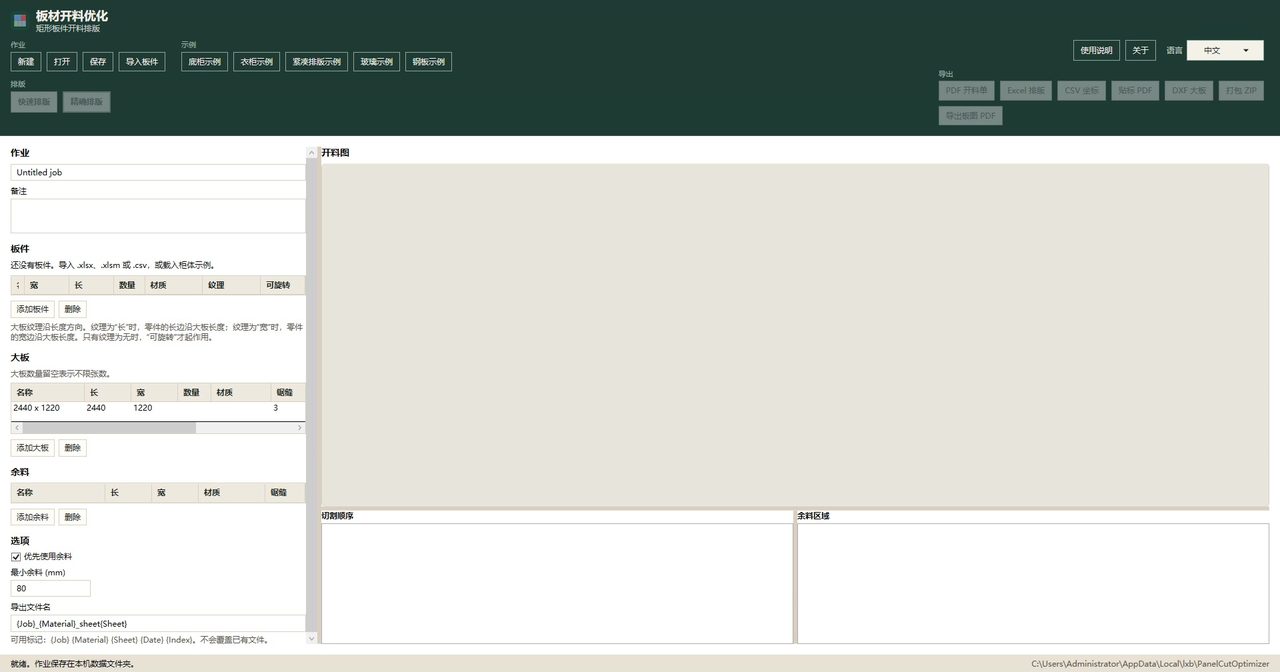
In a new job you can type parts and stock sheets yourself, choose Import parts, or load a sample. The empty-job screen states that you can import an .xlsx, .xlsm, or .csv list, or load a cabinet sample. For this example, load Dense pack sample (密集拼板示例 in the Chinese UI).
The sample’s part list (15 pieces, all MDF, grain set to None, rotation allowed) is:
| Width | Height | Qty |
|---|---|---|
| 760 | 560 | 4 |
| 560 | 560 | 4 |
| 760 | 400 | 4 |
| 400 | 400 | 3 |
4+4+4+3 = 15 parts. The sample stock sheet is 2440 × 1220, material MDF, kerf 3. The form notes that a blank stock quantity means unlimited.
You can also fill the same numbers by hand with Add part and Add stock. The forms include labeled fields for material, grain, rotation, remnants, and kerf.
2. Run a layout
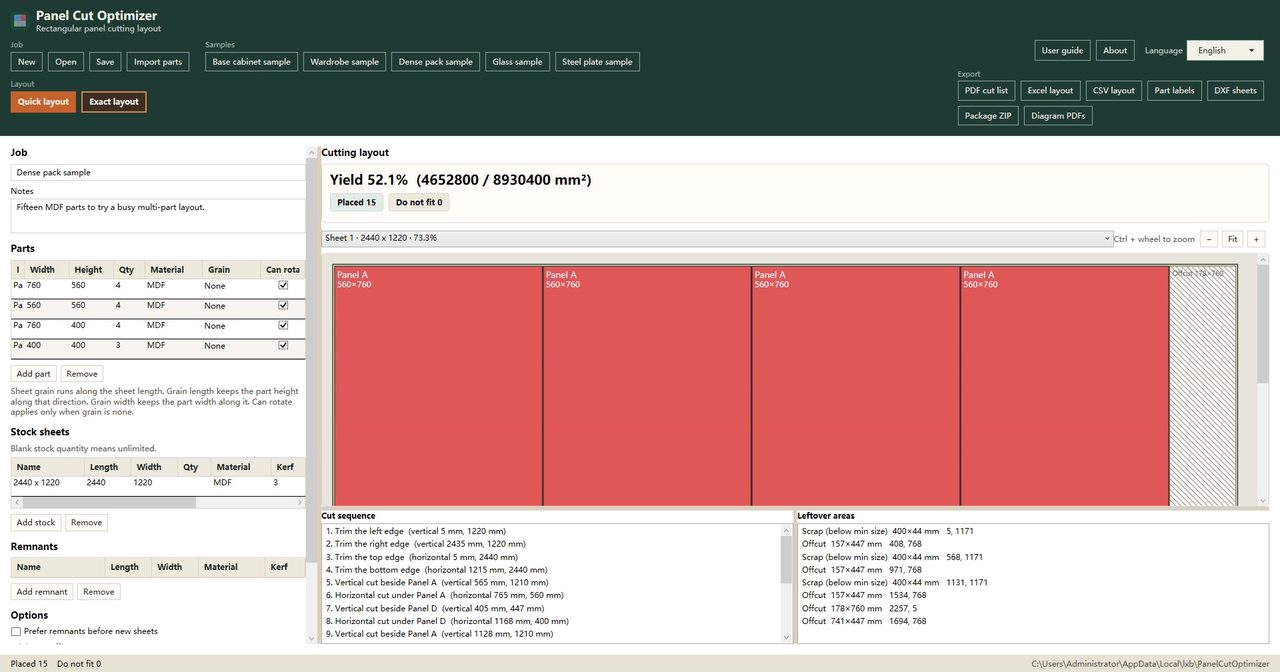
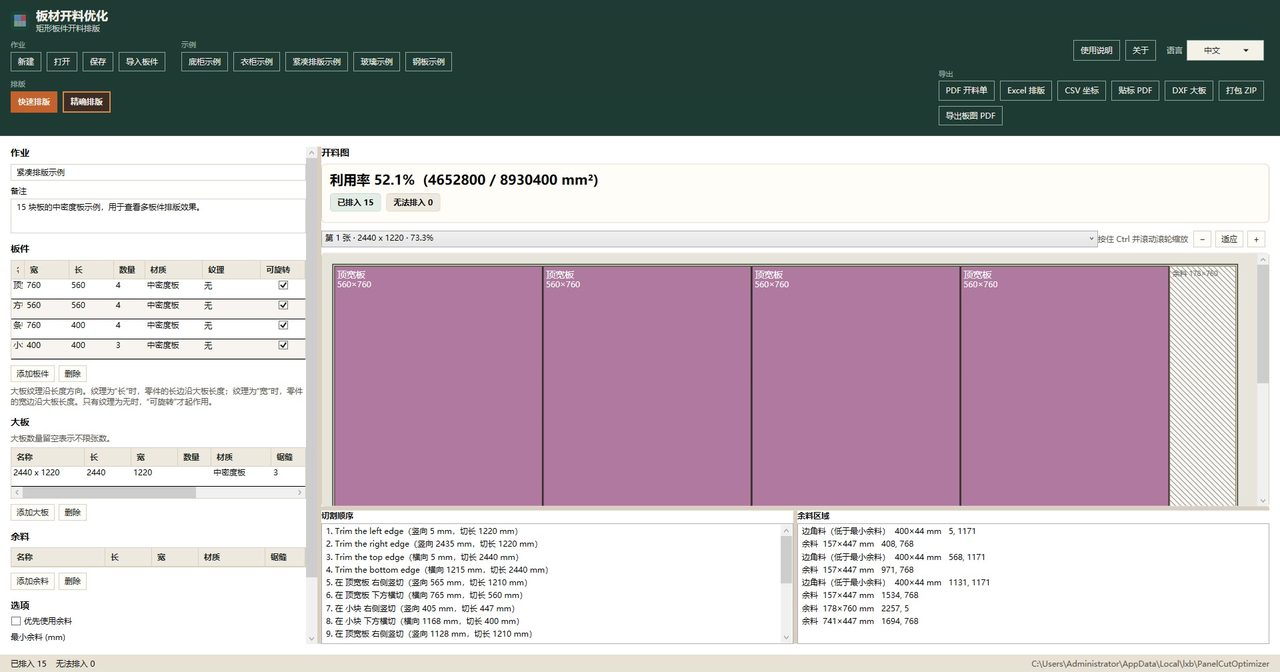
Use Quick layout or Exact layout. Both commands are on the main toolbar. After a run, the cutting layout shows yield, how many parts were placed, how many did not fit, a cut sequence, and leftover areas.
On the official Dense pack sample, one completed layout shows:
- Yield 52.1% (4,652,800 / 8,930,400 mm²)
- Placed 15, do not fit 0
- Sheet 1: 2440 × 1220, 73.3%
You can check the piece area: 4×760×560 + 4×560×560 + 4×760×400 + 3×400×400 = 4,652,800 mm². The denominator 8,930,400 mm² is the sheet area shown with that yield. These figures describe this sample result; they are not a performance claim for other jobs.
3. Compare results
To compare, run Quick layout and Exact layout on the same job and look at the same result fields: yield, placed / do not fit, the drawing, the cut sequence, and leftover areas. Use the comparison to decide which layout you want to keep for that job. This guide does not claim that one command always produces a higher yield.
The toolbar also has export actions labeled PDF cut list, Excel layout, CSV layout, part labels, DXF sheets, package ZIP, and diagram PDFs if you need to take a result out of the app.
4. Microsoft Store status
The Microsoft Store listing for this app (ID 9MXJS98LHDG1) is not published yet. The button below uses that official ID and currently does not open a public product page. It does not link to CutOptimizer.
View details on Microsoft Store
Store listing not published yet.